Three steps, once per phone.
Phone Sync uses CardDAV, the same open standard your email account already uses for contacts. It's built into iPhone, iPad and Mac, and one small free app adds it to Android.
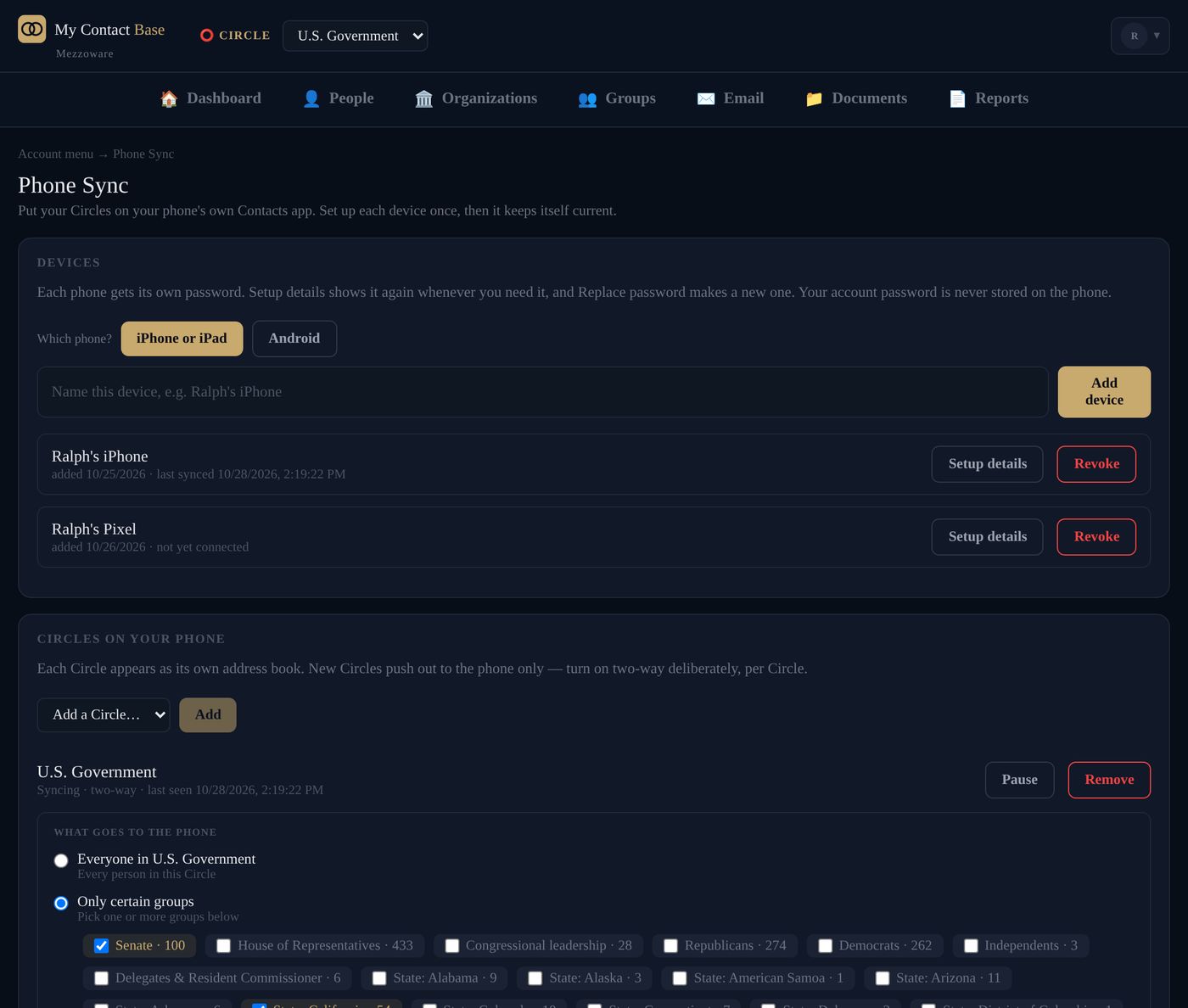
📱 iPhone and iPad
Settings → Apps → Contacts → Contacts Accounts → Add Account → Other
🤖 Android
With DAVx⁵, a small free CardDAV app from Google Play or F-Droid
💻 Mac
Contacts → Add Account → Other Contacts Account
📧 Outlook and Thunderbird
Through a CardDAV connector
An unknown number stops being unknown.
Because your Circles live in the phone's own address book, every part of the phone knows who's calling: the lock screen, the call log, the text messages, the share sheet.
- Name and company on the lock screen, before you answer
- Your call history stops being a list of numbers
- Texts from the school or the plumber arrive with a name on them
- Your Circles sit alongside what's already on the phone; nothing there is touched
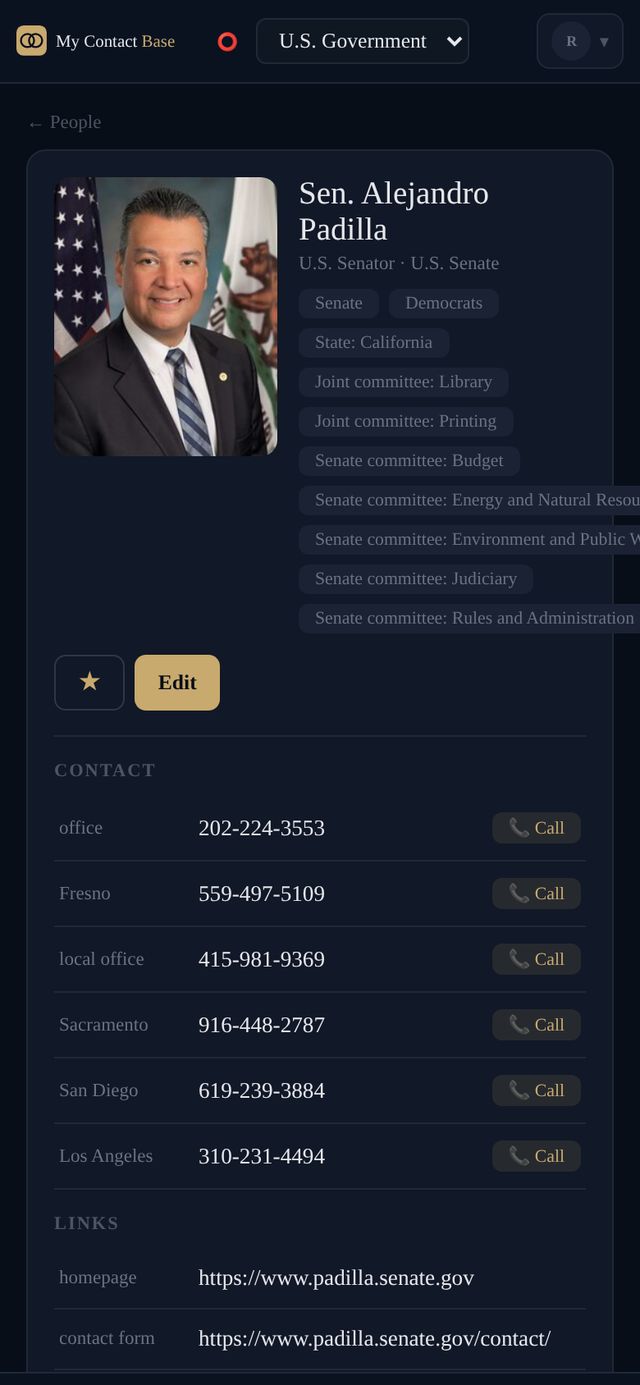
You decide, for each person and each phone.
A whole Circle
Everyone in it.
Certain groups
Only the groups you pick, like Clients or Family.
Favourites
The forty people you actually call, alone or within groups.
Birthdays can come along or stay off. Your phone and your spouse's phone don't have to carry the same thing. Lost a phone? Revoke that one device in the app; the others are untouched.
One-way by default, on purpose.
One-way (the default)
Changes flow from My Contact Base to your phones. An edit made on a phone doesn't touch the shared record, and the phone goes back to the shared version. Right for anything more than one person relies on.
Two-way (you turn it on)
Add a number on your phone and it appears in the app. Turn it on per Circle. A delete on a phone never deletes anyone by itself: the app asks you first, and every change a phone makes is recorded.
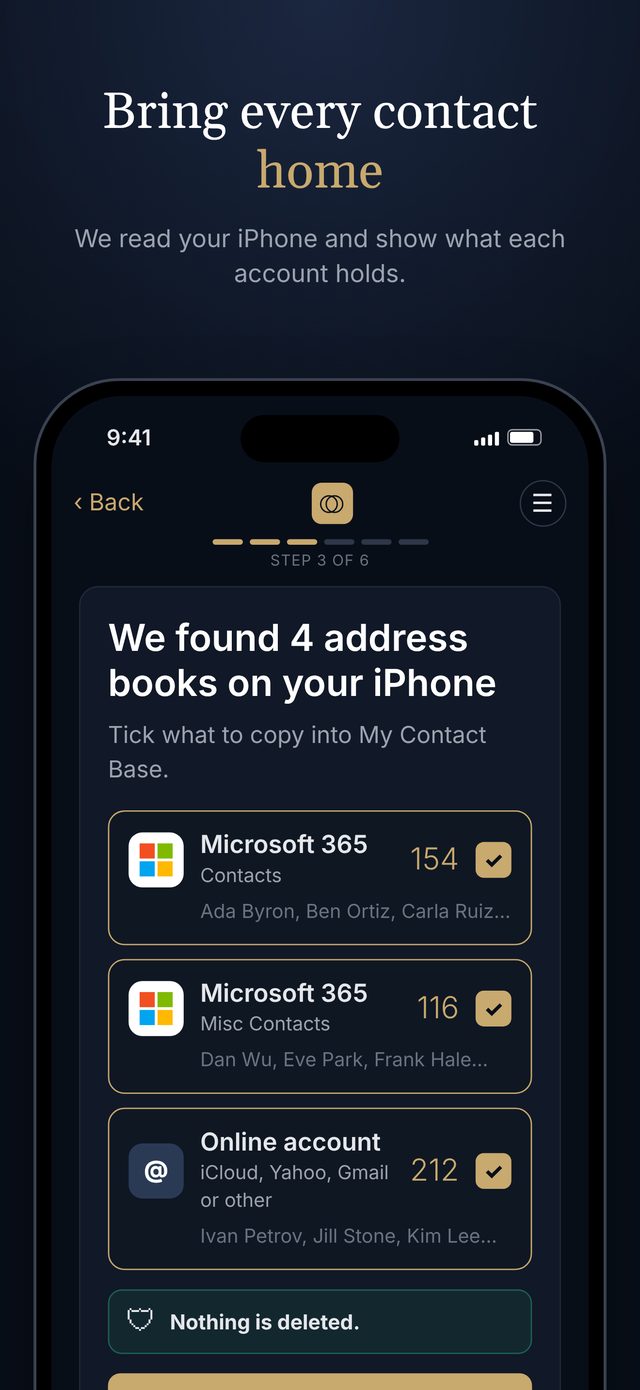
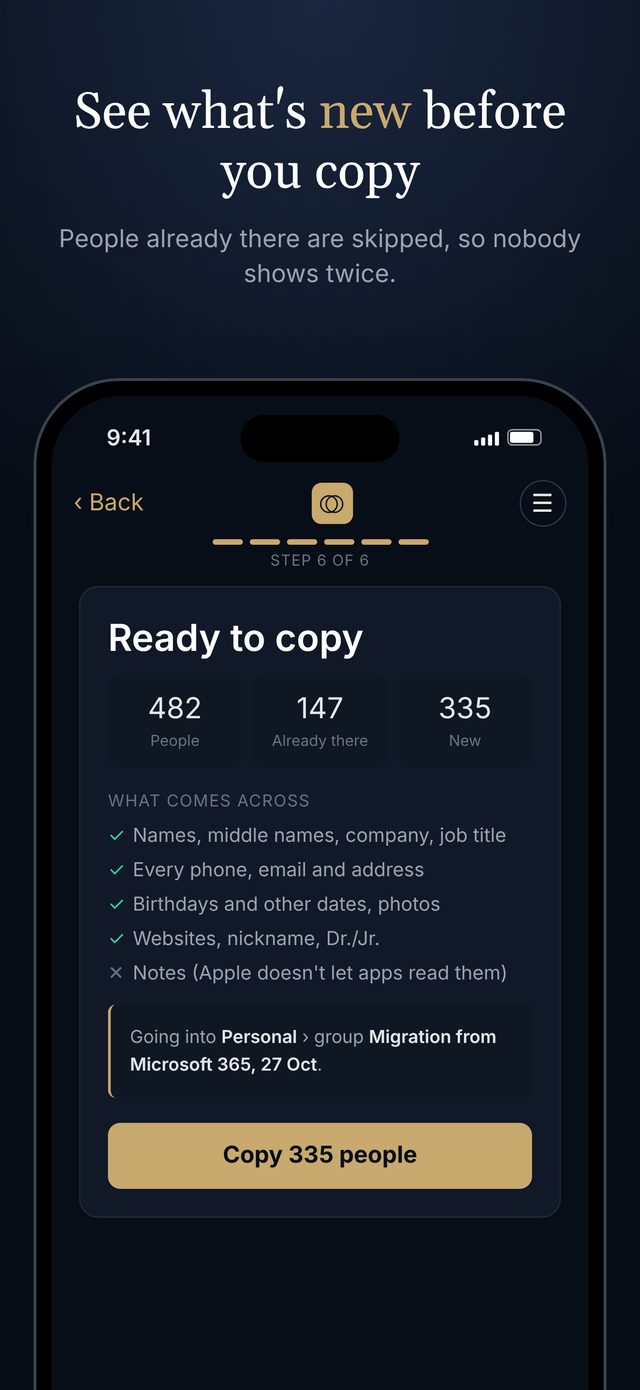
Copy what's already on your iPhone, from the phone itself.
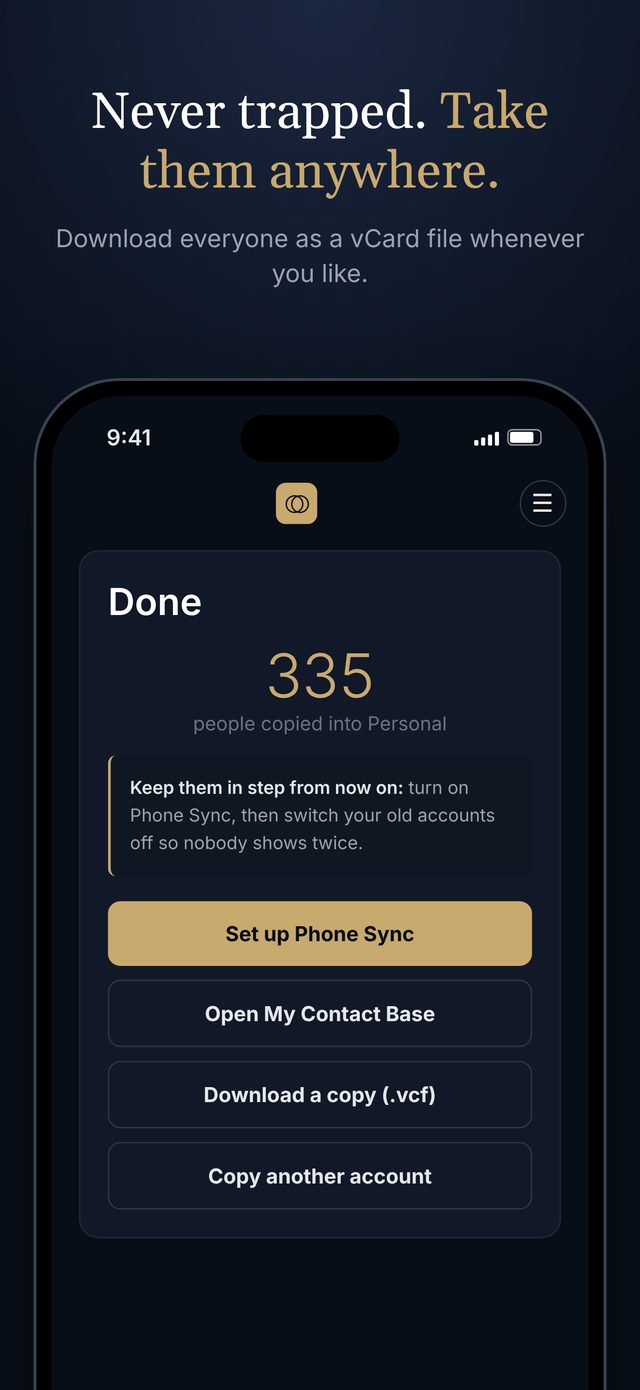
Apple gives you no way to export contacts in bulk from an iPhone. Our free Migration Tool does it: sign in, pick a Circle, see what's new against what you already have, and copy it across into one group. It never changes anything on your phone.
Coming soon to the App Store · free on every plan, including Free.
Android
Contacts app → Manage contacts → Export → save a .vcf file, then import it into My Contact Base. No computer needed.
iPhone, from a computer
iCloud.com → Contacts → Select All → Export vCard. Or export from Google Contacts, then import the file.
A file you already have
Any vCard or CSV from Outlook, a spreadsheet or an old system. The import maps the columns for you.
However you bring them in, duplicates are matched on email first, then on name plus company, and you see every proposed merge before anything is combined. Each import gets its own group, so a bad one is one click to undo.
About Phone Sync.
Do I have to install an app?
Not on iPhone, iPad or Mac: CardDAV is built in. You add an account in Settings the same way you'd add an email account. On Android you add one small free app, DAVx⁵, and your Circles appear in the phone's own Contacts app.
Will it overwrite the contacts already on my phone?
No. Your Circles arrive as a separate account, alongside whatever is already there, the same way a work email account's contacts do. Removing the account removes only ours.
What if I lose my phone?
Revoke that device in the app and syncing stops. Each device has its own password, so revoking one doesn't affect any other and you never have to change your own login.
If I add a contact on my phone, does it come back?
Yes, but it never lands in a Circle on its own. Someone new you add on the phone waits in New contacts until you choose their Circle in the app. Add them inside a two-way Circle on the phone and they go straight into it. Someone you delete on the phone is kept until you say so in the app.
How many devices can I connect?
As many as you like, on any paid plan. Each gets its own password.
Is it included in the free plan?
No. Phone Sync comes with every paid plan, and every paid plan starts with 30 days free, so you can try it on your own phone first.
What happens to my contacts if I leave?
They stay on your devices, in your phone's own address book. You can also export everything as vCard or CSV.