Keep a copy of what you have, before you move anything.
Whatever you use today, save a copy of your contacts first. It takes a minute, and it means nothing can be lost, whatever happens next. We'll remind you in the app too.
📧 Outlook
File → Open & Export → Import/Export → Export to a file → Comma Separated Values.
🔵 Google Contacts
contacts.google.com → Export → Google CSV, or vCard for iPhone.
📱 iPhone
iCloud.com → Contacts → select all → Export vCard. On Android: Contacts → Manage contacts → Export.
Choose whichever fits. Use more than one.
In the app, Bring in contacts is in the account menu and on the dashboard. A new account starts with Getting started: four steps, each with its button, so you always know what to do next.
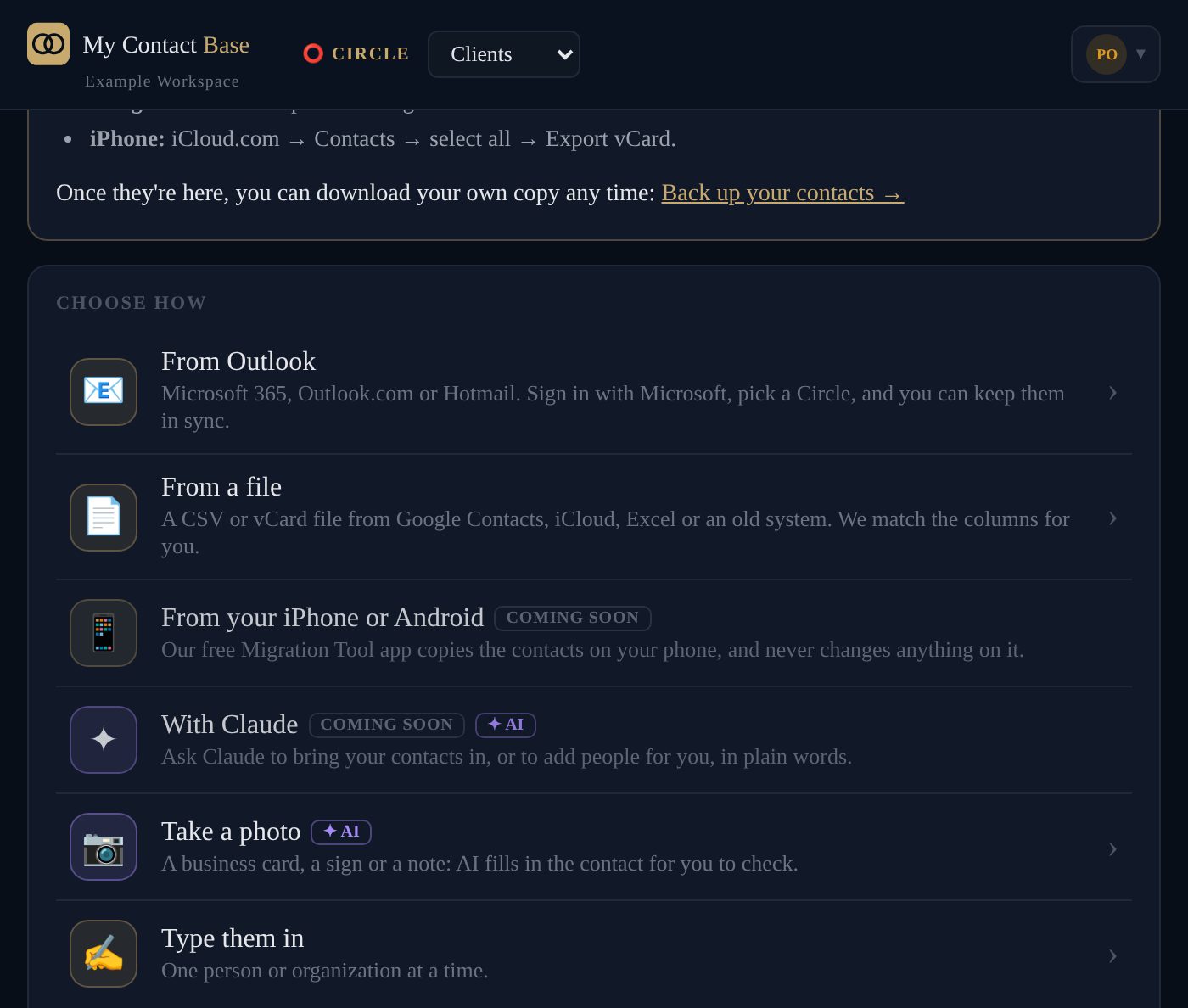
- From Outlook: sign in with Microsoft and copy them in
- From a file: CSV or vCard from Google, iCloud, Excel or an old system
- From your iPhone or Android: our free Migration Tool app Coming soon
- With Claude or ChatGPT: connect your account, then ask it to add people, fill in details or sort them into groups (how)
- Take a photo of a business card ✦ AI, or type them in
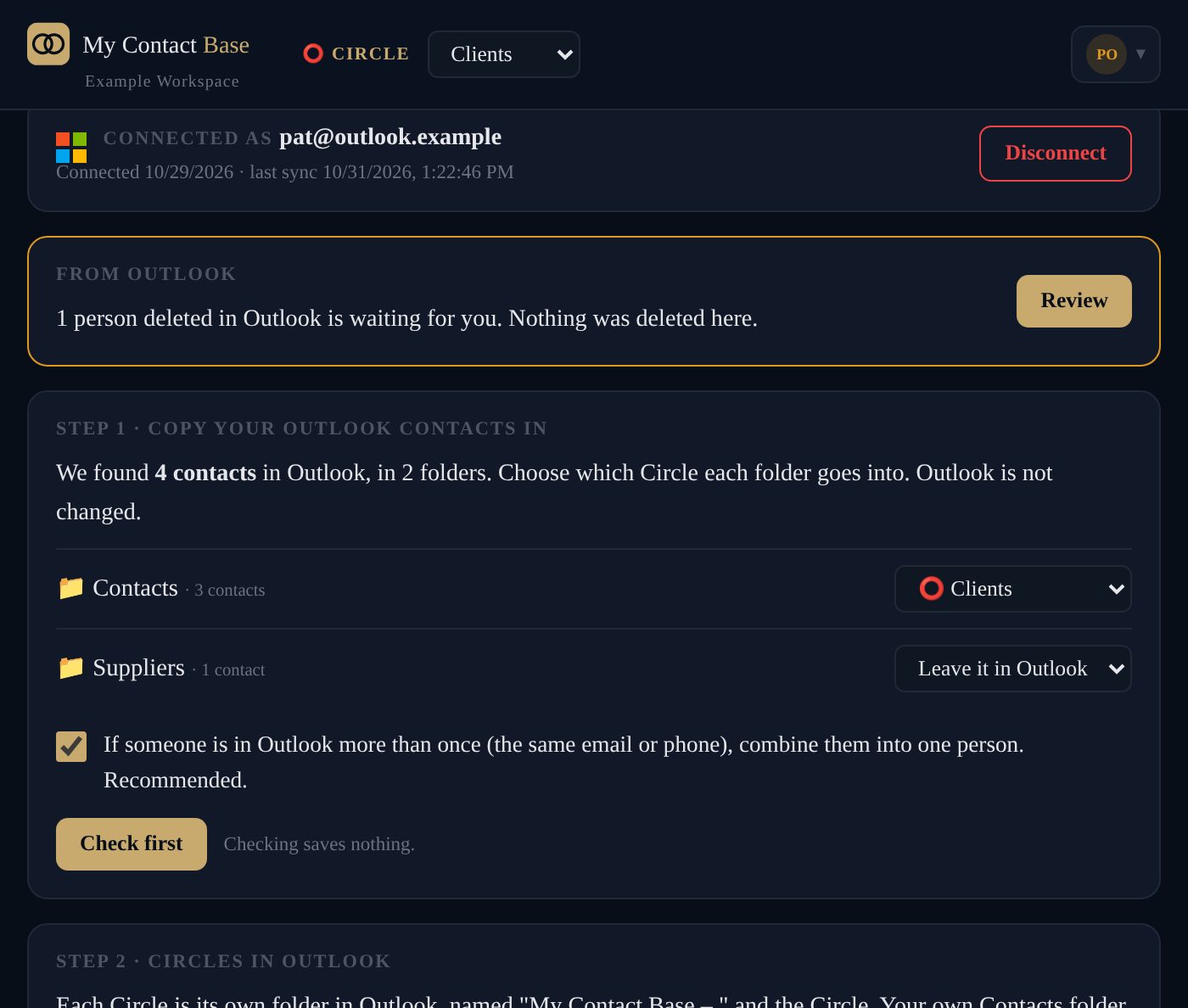
Copy Outlook in, then keep a My Contact Base folder in Outlook.
Works with Outlook.com, Hotmail and Microsoft 365. You sign in on Microsoft's own page; we never see your Microsoft password, and we read only your contacts, never your email or calendar.
- Copy in once, on every plan: choose which Circle each Outlook folder goes into, check what's new, then copy
- People in Outlook twice (the same email or phone) can be combined into one
- Keep in sync, on paid plans: each Circle becomes its own "My Contact Base" folder in Outlook, kept the same every 15 minutes, two-way if you like
- Deleted in Outlook? Nobody is deleted here until you say so
Ask your AI assistant to add them for you.
Connect My Contact Base to your AI assistant once, then just ask: "Add the speakers from this conference page to my Events group", "Who in my Circle has no phone number?", "Find my duplicates." It can never delete anyone, every change is shown to you before it's saved, and you can stop it any time from My Account, Connected AI apps.
Connect to AI assistants
Built so that nothing can go wrong quietly.
You see it first
Every way in shows what's new and what's already here before anything is saved. Nothing is copied until you press the button.
Nothing changes where they come from
Copying in never changes or deletes anything in Outlook, Google, iCloud or on your phone.
No duplicates
People you already have (the same email, phone or name) are skipped, so bringing the same contacts in twice makes no copies.
One group per batch
Each batch lands in its own group, like "From Outlook, 31 Oct", so a whole batch can be checked or undone in one go.
Saved every night
Every Circle is backed up every night, and anything deleted waits in Recently deleted until you decide.
Your plan, told up front
Free holds 100 people. If a batch is bigger than your plan has room for, you're told before anything is copied.
Your contacts are yours. Take them with you whenever you like.
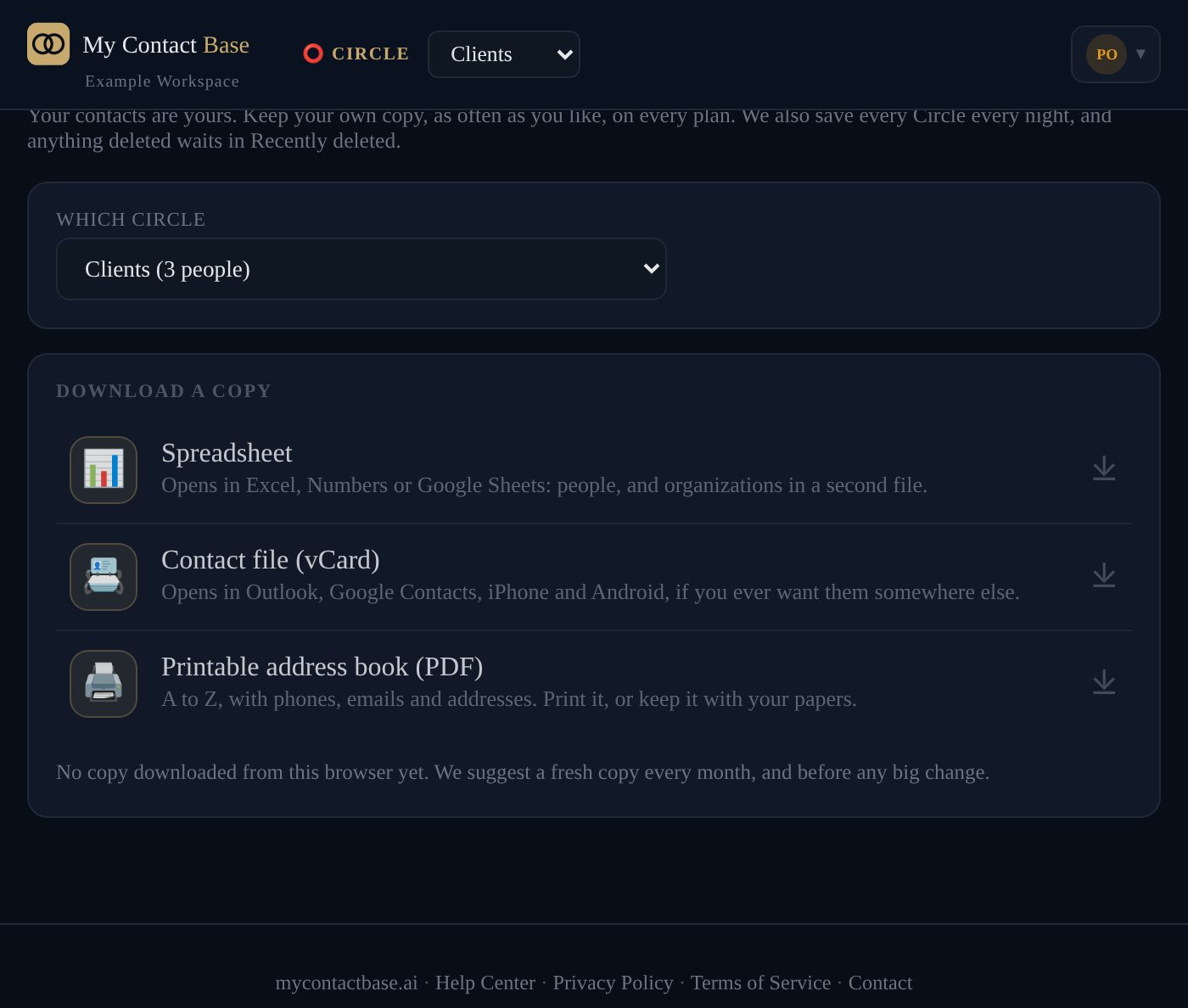
Open Back up your contacts in the account menu, on every plan, as often as you like:
- A spreadsheet that opens in Excel, Numbers or Google Sheets
- A contact file (vCard) that opens in Outlook, Google, iPhone and Android
- A printable address book (PDF), A to Z, with phones, emails and addresses
We suggest a fresh copy every month, and before any big change.
About bringing your contacts in.
Will it change anything in Outlook or on my phone?
Copying in never does. Outlook is changed only if you turn on Keep in sync, and then only in the "My Contact Base" folders we make; your own Contacts folder is never touched.
What if I bring in the same people twice?
People already in the Circle, with the same email, phone or name, are skipped. You see how many before anything is copied.
Something went wrong. Can I undo it?
Yes. Each batch is in its own group: open it and delete the whole batch in one go. They wait in Recently deleted in case you change your mind.
How many contacts can I bring in?
Free holds 100 people; paid plans hold far more. If a batch doesn't fit, the app tells you before it copies, and copies as many as there is room for.
Do I need a computer?
No. Everything works in the browser on a phone too. The Migration Tool app, coming soon, copies straight from an iPhone or Android phone.
Can I get my contacts out again?
Any time, on every plan: a spreadsheet, a contact file or a printable address book.