👤 Adding people
Add people and organizations one at a time, bring in a whole spreadsheet, or keep them up to date.
Add a person
- On the Dashboard, under Add, press Person. (Or open People and press Add person.)
- Choose Type it in.
- Fill in what you know: name, phones, emails, address, birthday. Leave the rest empty.
- Pick their groups and their organization if they have one.
- Press Save.
You can add more than one address, other dates such as an anniversary, websites and social media, and notes. Everything in the notes can be searched.

Add an organization
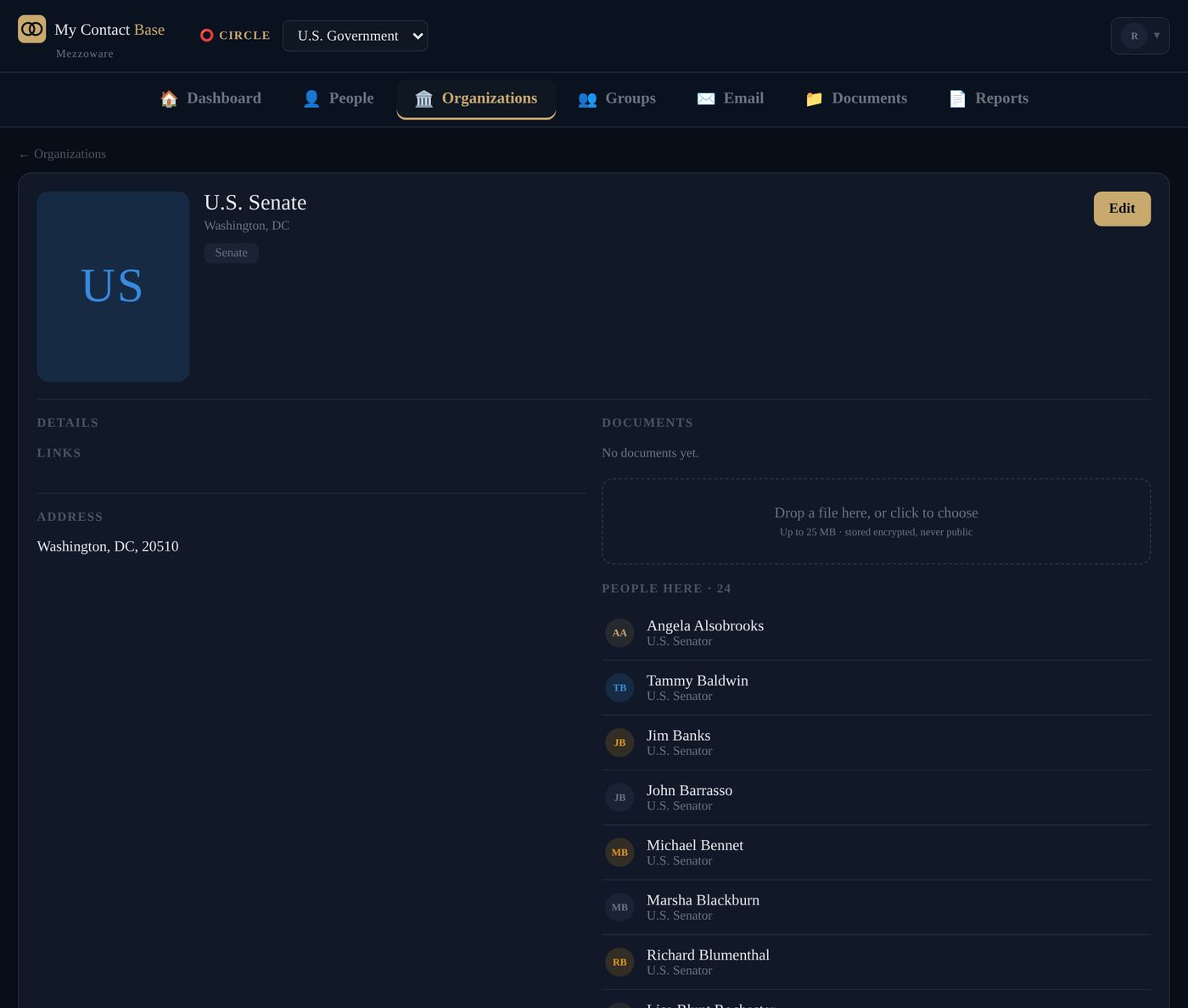
An organization is a company, a school, a club or a shop. People are linked to where they work.
- On the Dashboard, under Add, press Organization.
- Type its name, address, phones and website.
- Under People, choose the people who work there.
- Press Save.
To fill in an organization from the web, press ✦ Search for information on its edit screen. How AI lookup works.
One person can belong to several organizations. The first one is their main one, and it is the company your phone shows.
Change or delete someone
Open the person or organization and press Edit. Change what you need and press Save.
To delete, press Delete. Nothing is lost: they go to Recently deleted, where you can put them back.
Bring in a spreadsheet
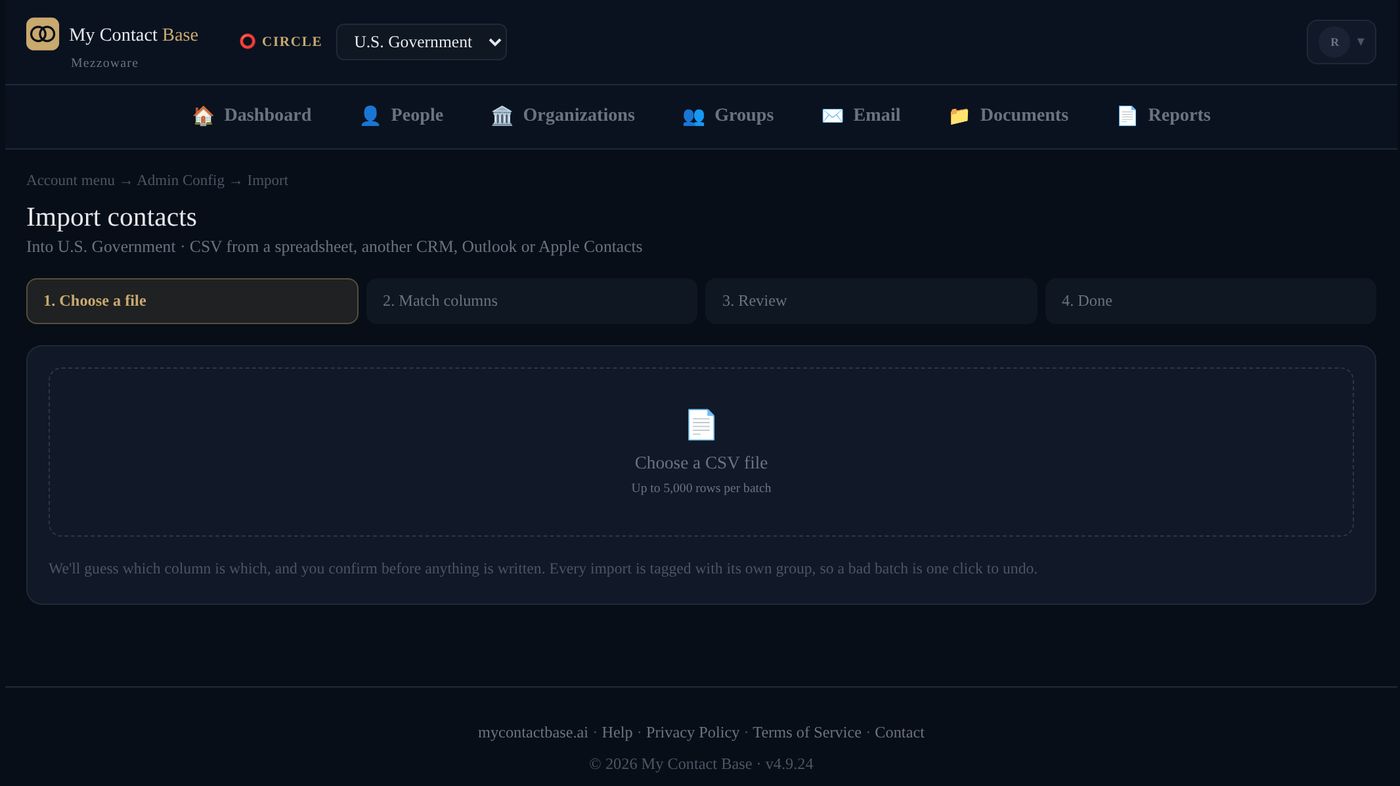
- Open your account menu (your initial, top right), then Import.
- Choose a CSV file (up to 5,000 rows at a time).
- Check which column is which. We guess first; you confirm.
- Look over the people we think you already have.
- Press Import.
Each import goes into its own group, so if something went wrong, you can delete that one batch in one go.
Where to get a CSV file: Outlook, Google Contacts, Apple Contacts on a Mac and most other programs have an Export option that saves one.
Copy the contacts already on your iPhone
Our free Migration Tool for iPhone is coming soon. It copies the contacts on your phone into the Circle you choose, and never changes anything on the phone.
Until then, you can export your contacts from iCloud or Google as a file and bring them in with Import.
Still stuck?
Write to us and tell us what you were trying to do. A screenshot helps.