⭕ Circles and sharing
Circles keep the parts of your life or business apart. Here is how to make them, share them and decide who sees what.
What is a Circle?
A Circle is a separate address book. Its people, organizations, groups and documents stay inside it. Switch between your Circles with the Circle picker at the top of the screen.
A family might keep “Family”, “Home services” and “School”. A business might keep one per team or per client list.
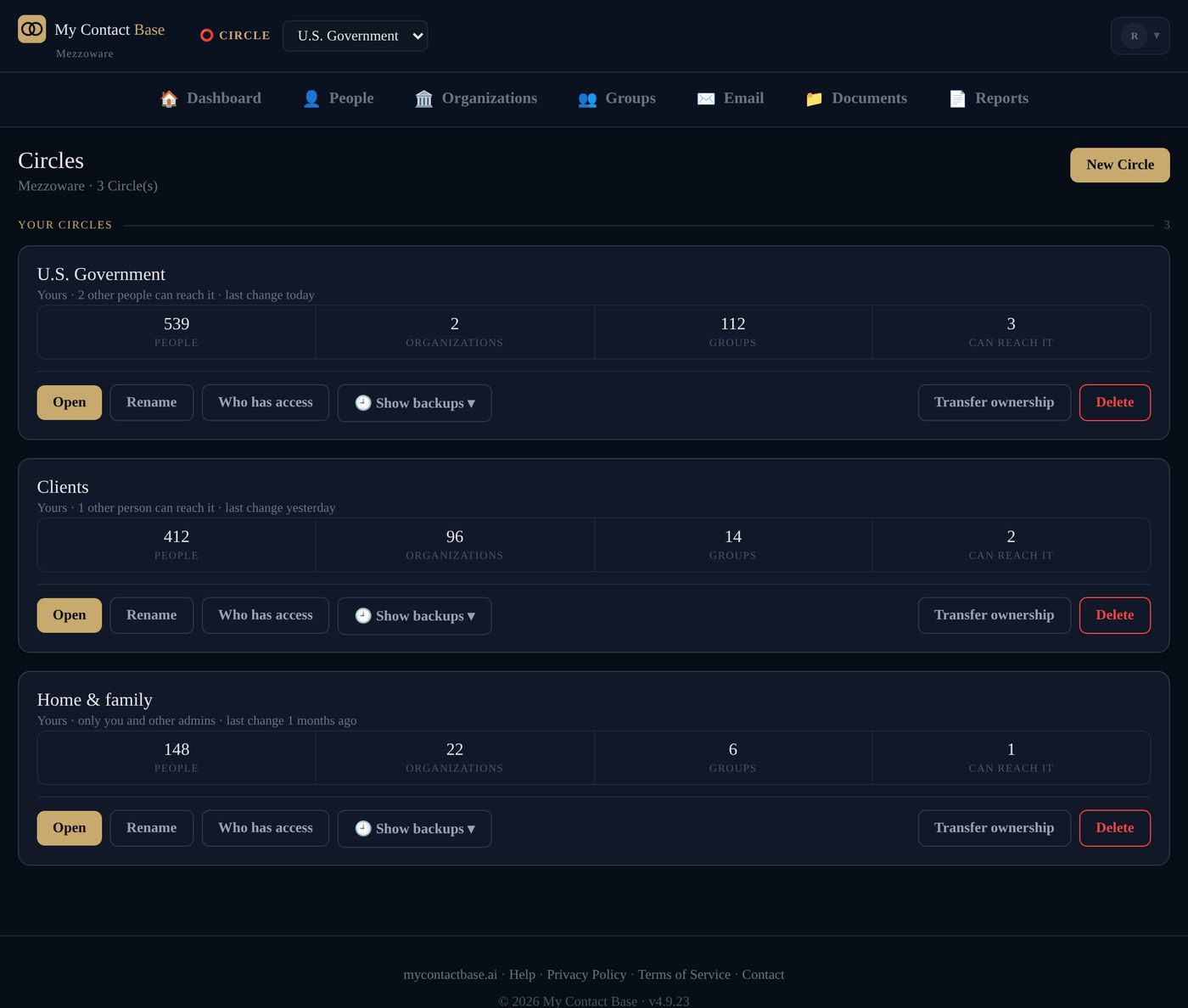
Make, rename or delete a Circle
Open your account menu (your initial, top right), then Manage Circles. Press New Circle to make one. Each Circle has Rename and Delete.
A deleted Circle waits 30 days before it is removed for good.
Who can see what
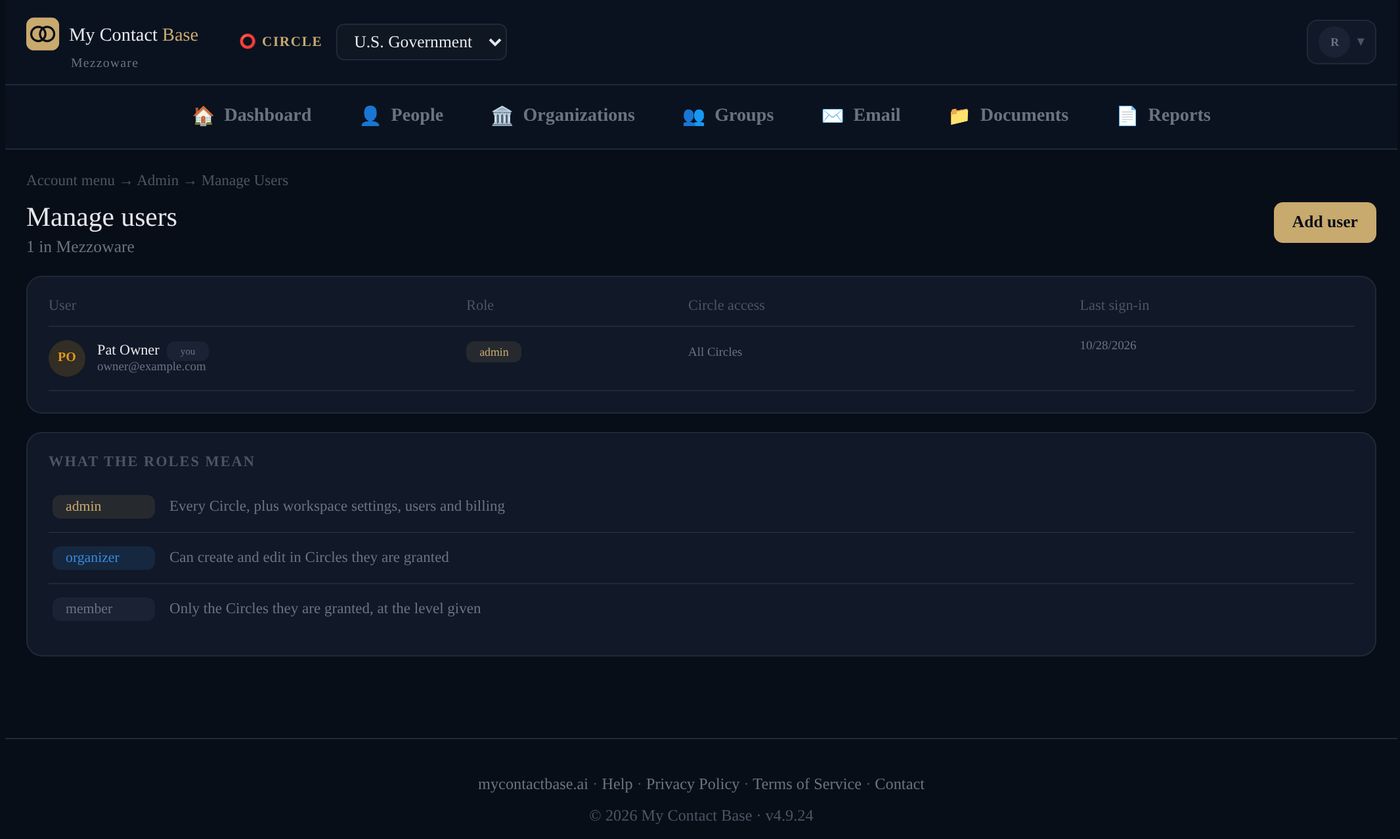
Admins see every Circle in the workspace. Everyone else sees only the Circles you give them, either read only or read and write.
- Open Manage Circles.
- On the Circle, press Who has access.
- Press Give access, choose the person and how much they can do.

Add people to your team
Open your account menu (your initial, top right), then Manage Users, and press Add user. Then give them the Circles they need.
How many people you can add depends on your plan. See plans.
Hand a Circle over to someone else
On the Circle, press Transfer ownership and choose the new owner. Useful when someone takes over a client list or a family address book.
Public Circles
Public Circles, like U.S. Government, are free for everyone and kept up to date every night from official sources. They are read only. Press Make my own copy to change anything; a copy counts toward your plan.
More than one workspace
If you belong to more than one workspace (for example your family’s and your company’s), switch between them in your account menu (your initial, top right), under Workspaces.
Still stuck?
Write to us and tell us what you were trying to do. A screenshot helps.