📱 Phone Sync
Phone Sync puts your Circles in your phone’s own Contacts app. When someone calls, you see their name. You set it up once and it keeps itself up to date.
Put your contacts on your phone
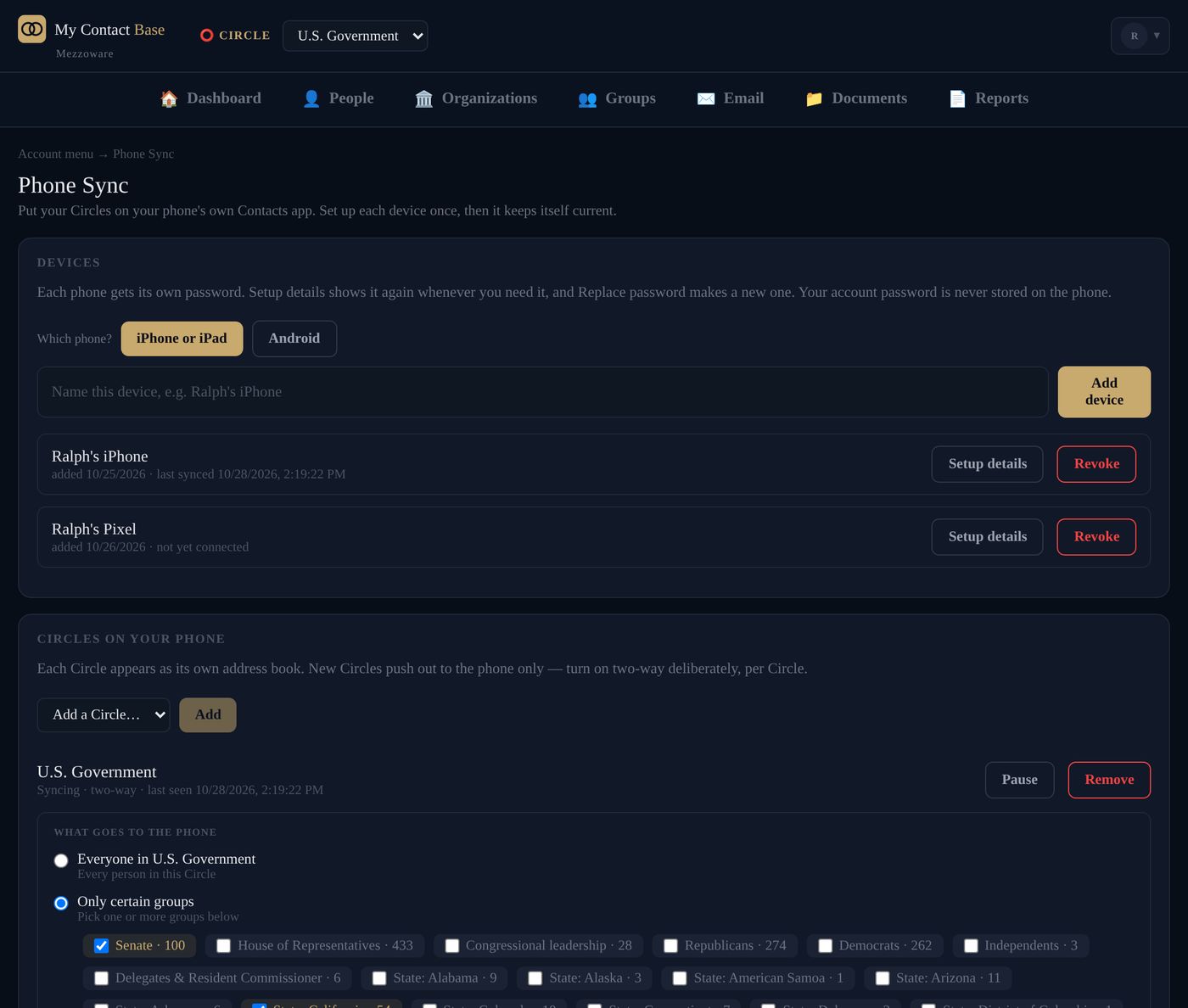
- Open your account menu (your initial, top right), then Phone Sync.
- Under Devices, choose iPhone or iPad or Android, give the phone a name and press Add device.
- Follow the steps it shows on your phone.
- Under Circles on your phone, choose who goes on it.
Phone Sync comes with every paid plan. Each phone gets its own password; your My Contact Base password never goes on the phone.
Set up an iPhone or iPad
- In My Contact Base, add the phone (see above) and press Setup details. Keep that screen open.
- On the iPhone, open Settings, then Apps, then Contacts.
- Tap Contacts Accounts, then Add Account, then Other, then Add CardDAV Account.
- Type the server, user name and password exactly as My Contact Base shows them, and My Contact Base as the Description. Tap Next.
- Back in Settings › Apps › Contacts, set Default Account to My Contact Base.
Open the Contacts app and tap Lists: each Circle is its own list. They appear within a minute.
Set up an Android phone
- Install the free app DAVx⁵ from the Play Store and open it. Let it reach your contacts.
- Tap +, then Login with URL and user name.
- Type the server, user name and password from Setup details, and tap Login.
- Set Contact group method to Groups are separate vCards, then tap Create account.
- Under CardDAV, switch on the Circles you want.
Your Circles then appear in your phone’s Contacts app.
Choose who goes on your phone
Under Circles on your phone, add a Circle, then choose everyone in it, only certain groups, or only your favourites. Each person in your team makes their own choice.
- Two-way lets changes made on the phone come back. It is off until you turn it on, for each Circle.
- Pause stops a Circle for a while; Remove takes it off your phones. Neither deletes anything in My Contact Base.
People you add or delete on your phone
Someone you add on the phone waits in New contacts until you choose their Circle. The app asks you once when you sign in (From your phones).
Someone you delete on the phone is only held. Choose Keep, put back on the phone or Delete for everyone.
If you add someone inside a two-way Circle’s list on the phone, they go straight into that Circle.
Lost your phone?
Open Phone Sync and press Revoke next to that phone. It stops syncing straight away. Nothing in My Contact Base is deleted.
Replace password gives a phone a new password if you think someone has seen it.
Still stuck?
Write to us and tell us what you were trying to do. A screenshot helps.