👥 Groups and big changes
Groups sort your people. The Bulk editor changes hundreds of them at once.
Use groups
Open Groups in the top bar to see every group in this Circle and how many people are in each. Open a group to see its people. One person can be in many groups.

Make, rename and order groups
Open your account menu (your initial, top right), then Manage Groups (or press Manage on the Groups page).
- Type a name and press Create to make a group.
- Drag a group by ⠿ to change the order, or press Sort A to Z.
- Edit renames a group; Delete removes it.

Delete a group
Deleting a group deletes only the group. The people in it stay where they are.
If you choose and the people and organizations in it, you first see exactly who would go. Anyone who is also in another group is kept (you can untick that), and you type DELETE to confirm. Even then, they go to Recently deleted.
Change many people at once: the Bulk editor
- On the Groups page, press ☑ Bulk editor.
- It opens on the people who are not in any group. Pick another group at the top if you like.
- Tick the people and organizations you want.
- Choose what to do: make a new group from them, add them to a group, move them to another group, move or copy them to another Circle, or delete them.
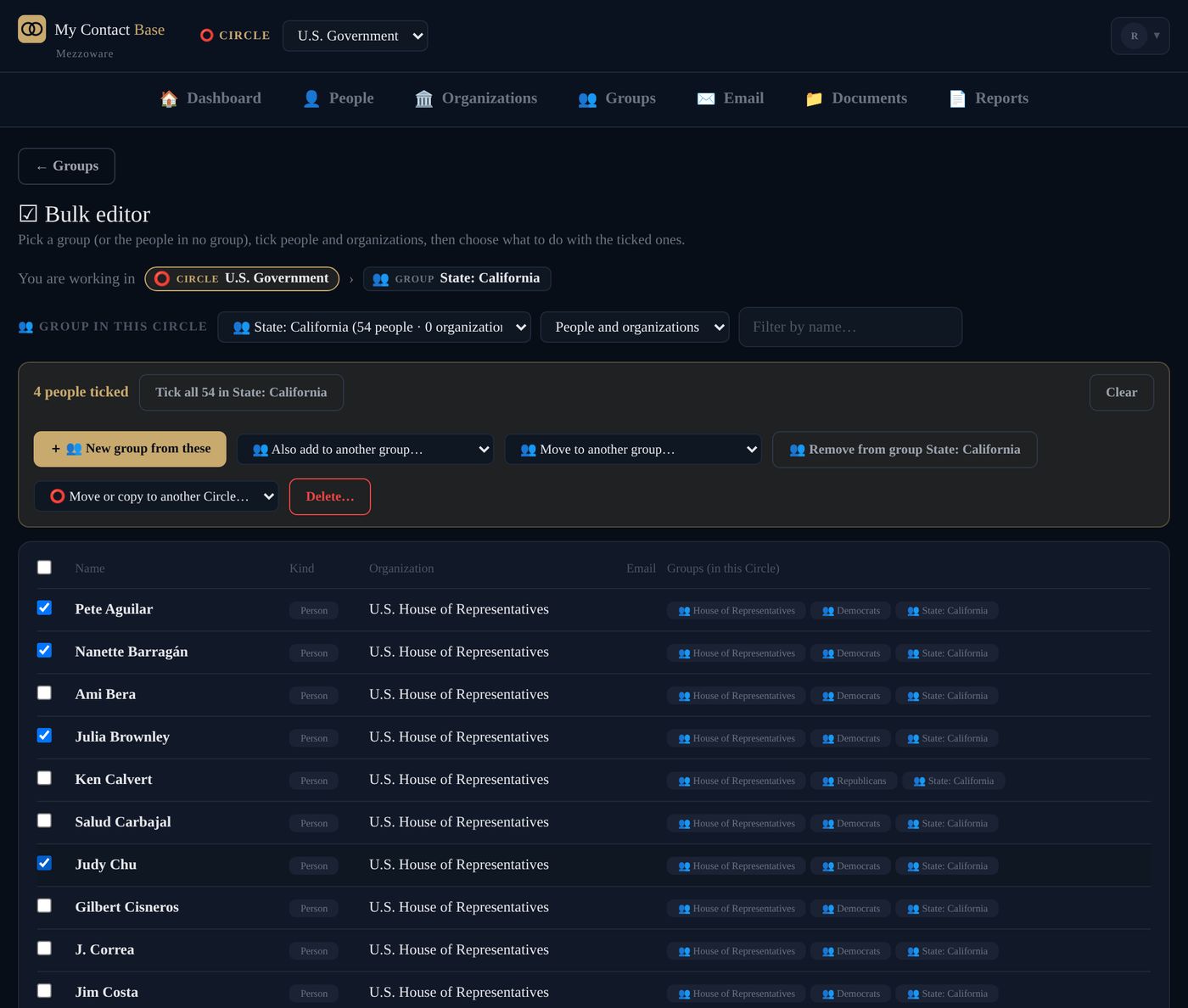
Move or copy people to another Circle
In the Bulk editor, tick the people, then choose Move or copy to another Circle. Pick the Circle and the group they go into there. Before anything happens, you see where they are coming from and where they are going.
To tell them apart, a Circle is always a round gold ⭕ CIRCLE label and a group is a square grey 👥 GROUP label.
Move or copy a whole group to another Circle
On Manage groups, press ⭕ Move to a Circle… next to a group and pick the Circle. Move takes the group's name and everyone in it, and the group leaves the old Circle. Copy leaves the group where it is and makes a copy of each person in the other Circle.
Before anything happens you are told who is also in other groups (you can leave them behind), which organizations they work at are not in the group (you can bring those along), and whether the other Circle already has a group of that name (join it, or make a separate one).
Only people can be copied, not organizations, and each copy counts toward your plan.
Deleting a lot at once
Deleting 25 or more at once asks you to type the number first. Everything deleted goes to Recently deleted, so it can be put back.
Still stuck?
Write to us and tell us what you were trying to do. A screenshot helps.