📷 Contact Capture and AI ✦ AI
Take a photo of a business card, a sign or a handwritten page, and AI turns it into a contact. Or let AI fill in an organization from the web.
Take a photo of a business card
- On the Dashboard, under Add, press 📷 Take a photo.
- Choose Business card and take the photo. Add the back too if it has anything on it.
- AI reads it. Check what it found: anything it wasn’t sure of is marked in orange.
- Choose the Circle and group, and press Save.
Nothing is saved until you press Save. It works in the browser on any phone or computer; there is nothing to install. On a computer, you choose a photo or screenshot instead of using the camera.
A QR code on a card is read straight away, without AI.
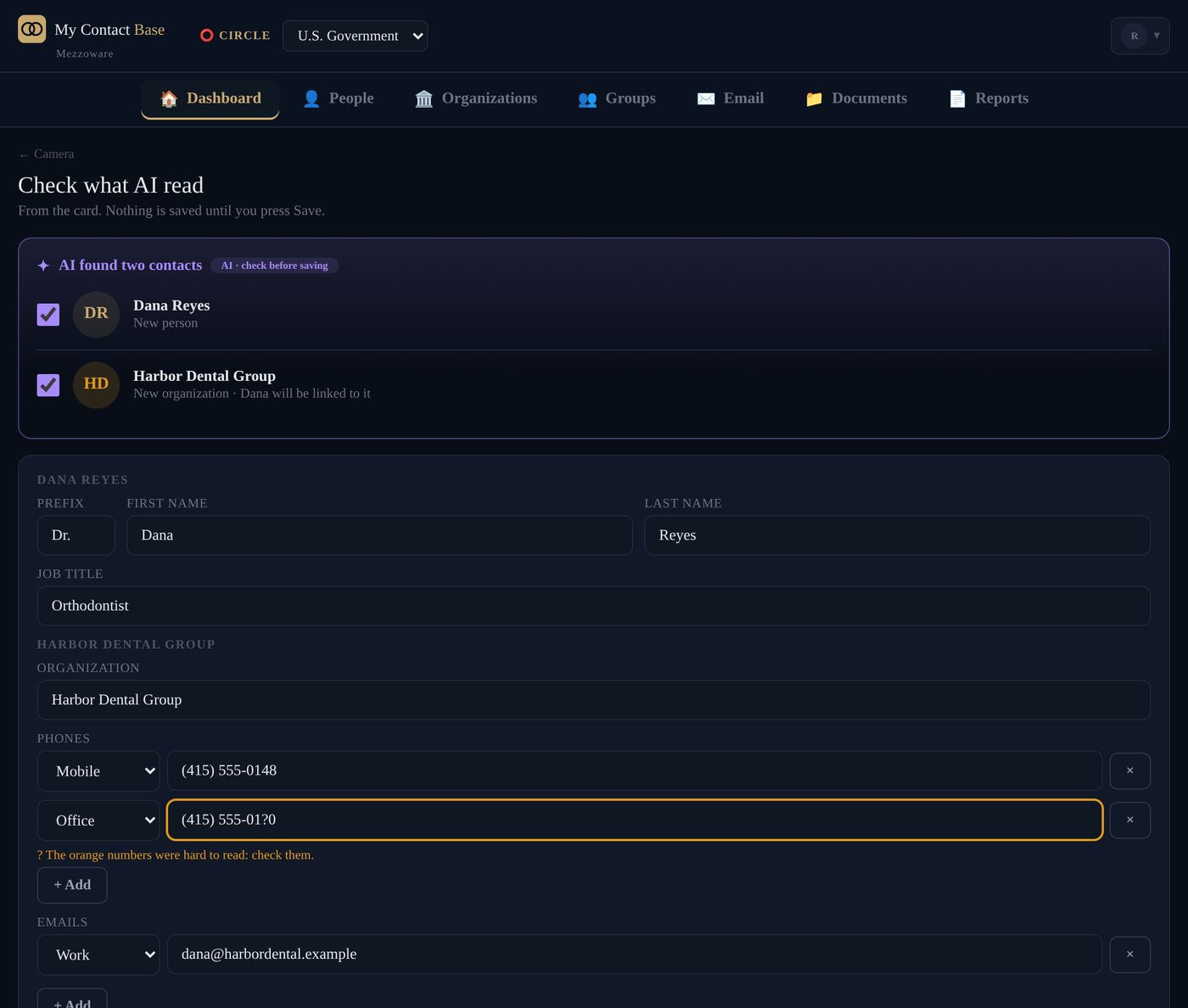
Add a shop or business from its sign
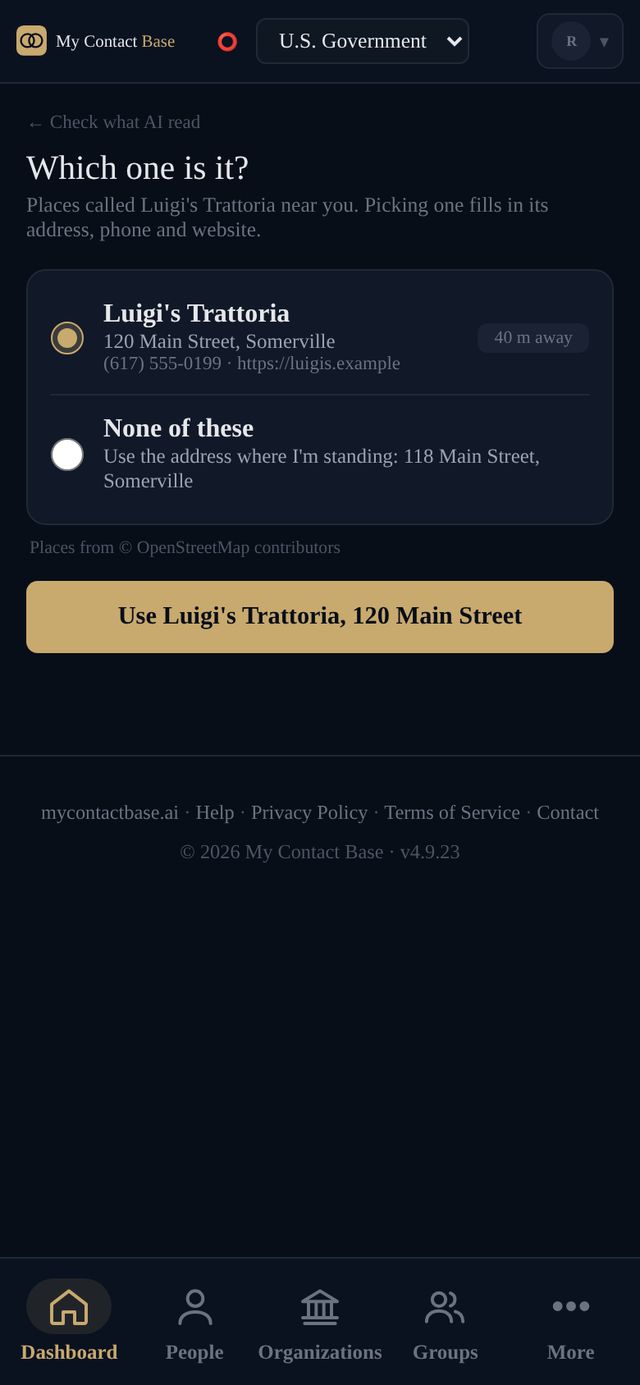
Choose Sign or shopfront and take a photo. Signs rarely show an address, so press 📍 Find it near me: we look up the places with that name where you are standing, and you pick the right one.
Your position is used only for that search. It is never kept.
A handwritten page or a screenshot
A page from an old address book, an email signature, a text with a number in it: choose Note or handwriting or Screenshot. If there are several people, AI lists them all and you tick who to keep.
On a computer, press Add and then From your screen to choose a screenshot you already have.
Add from a web page
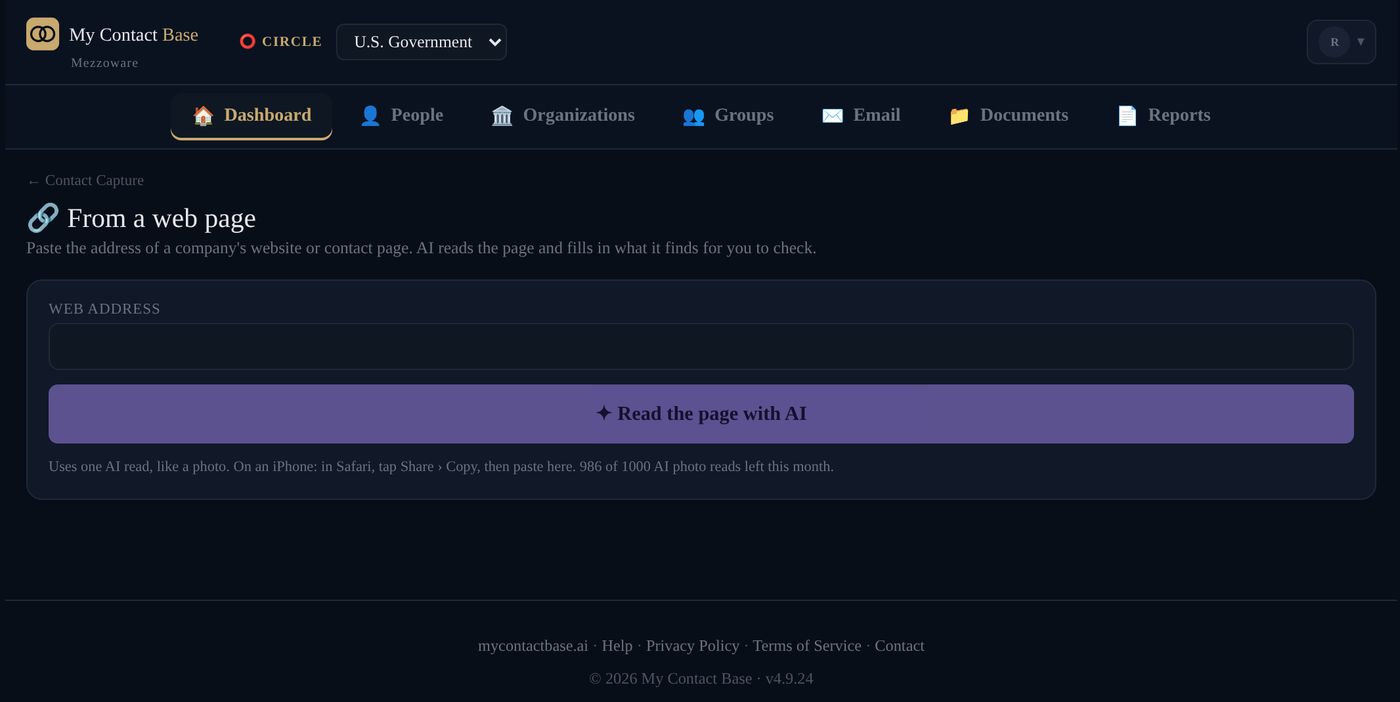
Copy the address of a company’s contact page, choose Web page link, paste it in and press ✦ Read the page with AI. You check it, just like a photo.
At a trade show or event
Choose 🎪 Trade show event and keep taking photos of cards all day. Each one is read while you carry on. At the end, check them and save them all together into a new group.
The cards you have taken are kept on that phone until you save them or throw them away, so closing the browser loses nothing.
Capture settings
Press ⚙ Contact Capture settings to choose your usual Circle, whether to keep the photos with the contact, whether to use your position for signs, and whether to read QR codes.
How many photos you can read
Each paid plan includes a number of reads a month: 200 on Personal & Family, 1,000 on Team, 3,000 on Business and 7,500 on Enterprise. One read can include up to four photos, like the front and back of a card.
On the Free plan you add contacts by typing them in. Contact Capture does not use AI credits.
Look up an organization with AI
- Open the organization and press Edit.
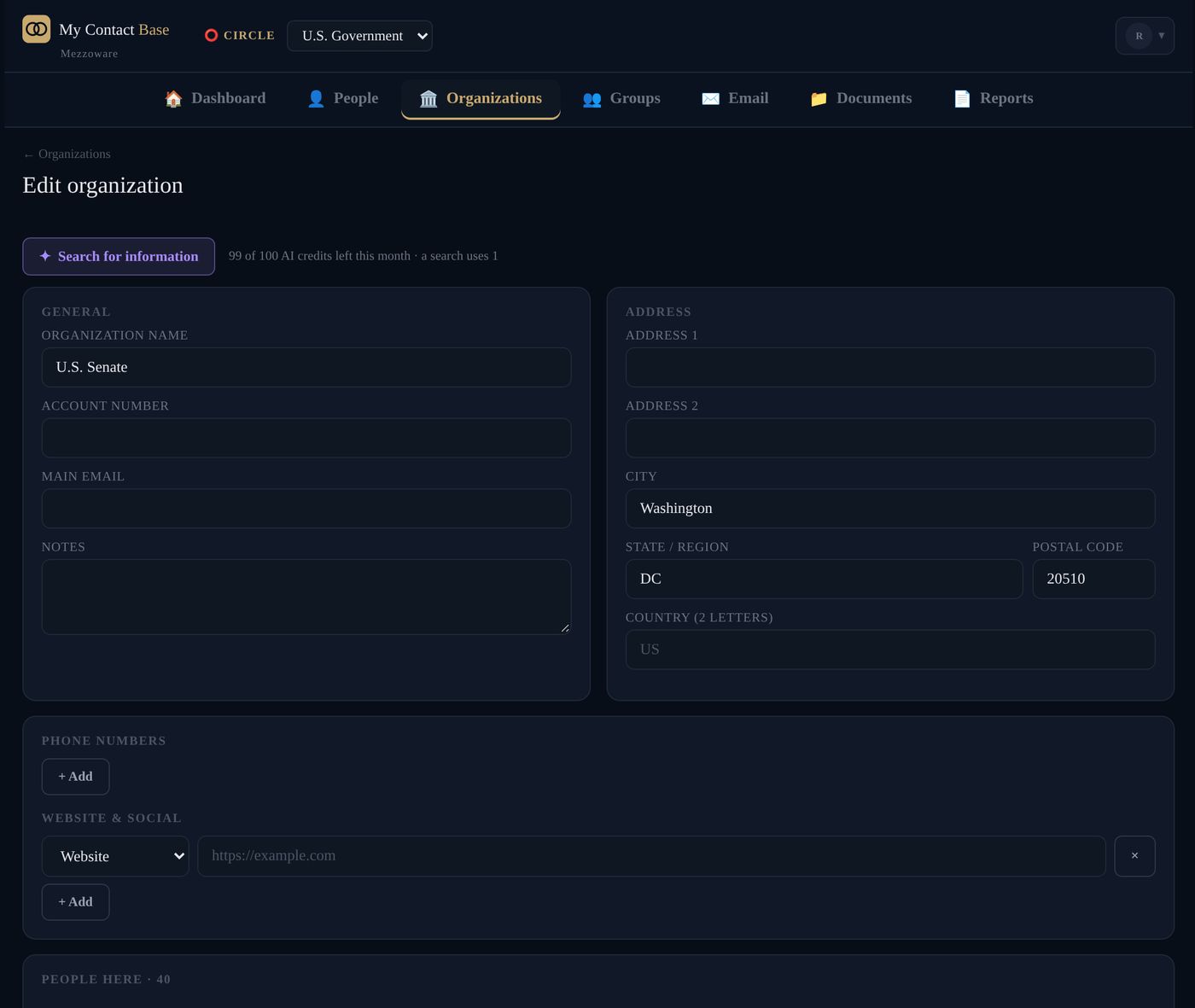
- Press ✦ Search for information.
- AI suggests its logo, website, LinkedIn page, address, main phone and the people who work there. Each suggestion shows the page it came from.
- Tick what you want to keep, then press Save.
For people you already have there, AI also suggests what is missing on their cards. Update the ticked people saves those straight away. For one person, press ✦ Search for more information on their edit screen.
AI credits
Each AI lookup uses one AI credit. Every plan has some each month: 3 on Free, 25 on Personal & Family, 100 on Team, 300 on Business and 1,000 on Enterprise. They refill on the 1st of each month.
Your account menu shows how many are left this month.
Still stuck?
Write to us and tell us what you were trying to do. A screenshot helps.